Claude setup tutorial

Use the Community Aviation MCP with Custom Tools and Skills

We are releasing the first version of the Community Aviation MCP, a connector that exposes weather and NOTAM data to Claude Desktop, an early, intentionally limited release. Add this as a custom connector, authenticate, then enable its aviation tools in a chat. Just follow the steps.

mcp.communityaviation.ai

Community Aviation MCP for Claude

Step By Step

1

Open Settings and Go to Connectors

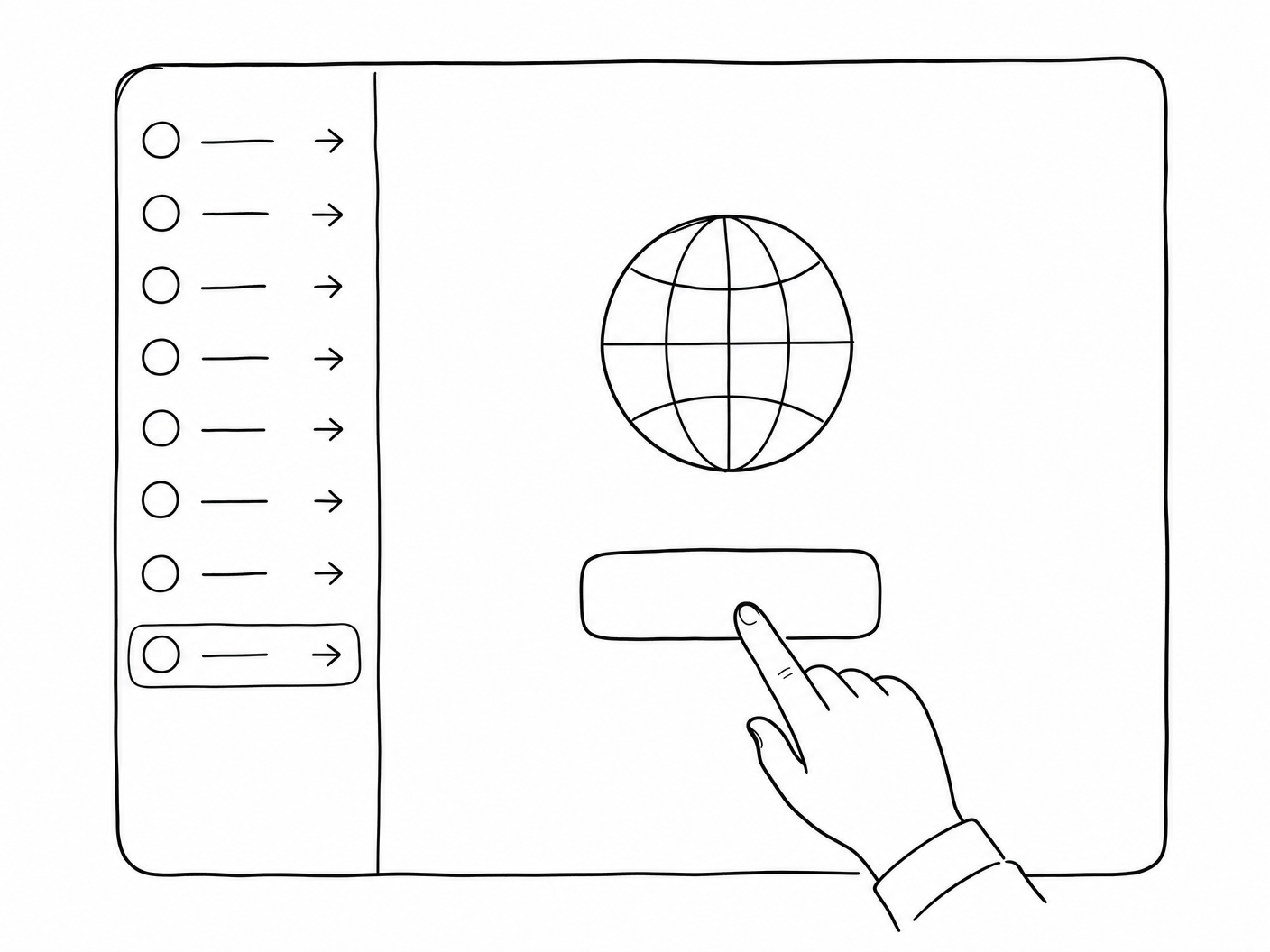
In Claude, open Settings and navigate to Customize, then select Connectors. Click the + button at the top of the Connectors panel. Select Add custom connector from the dropdown menu.
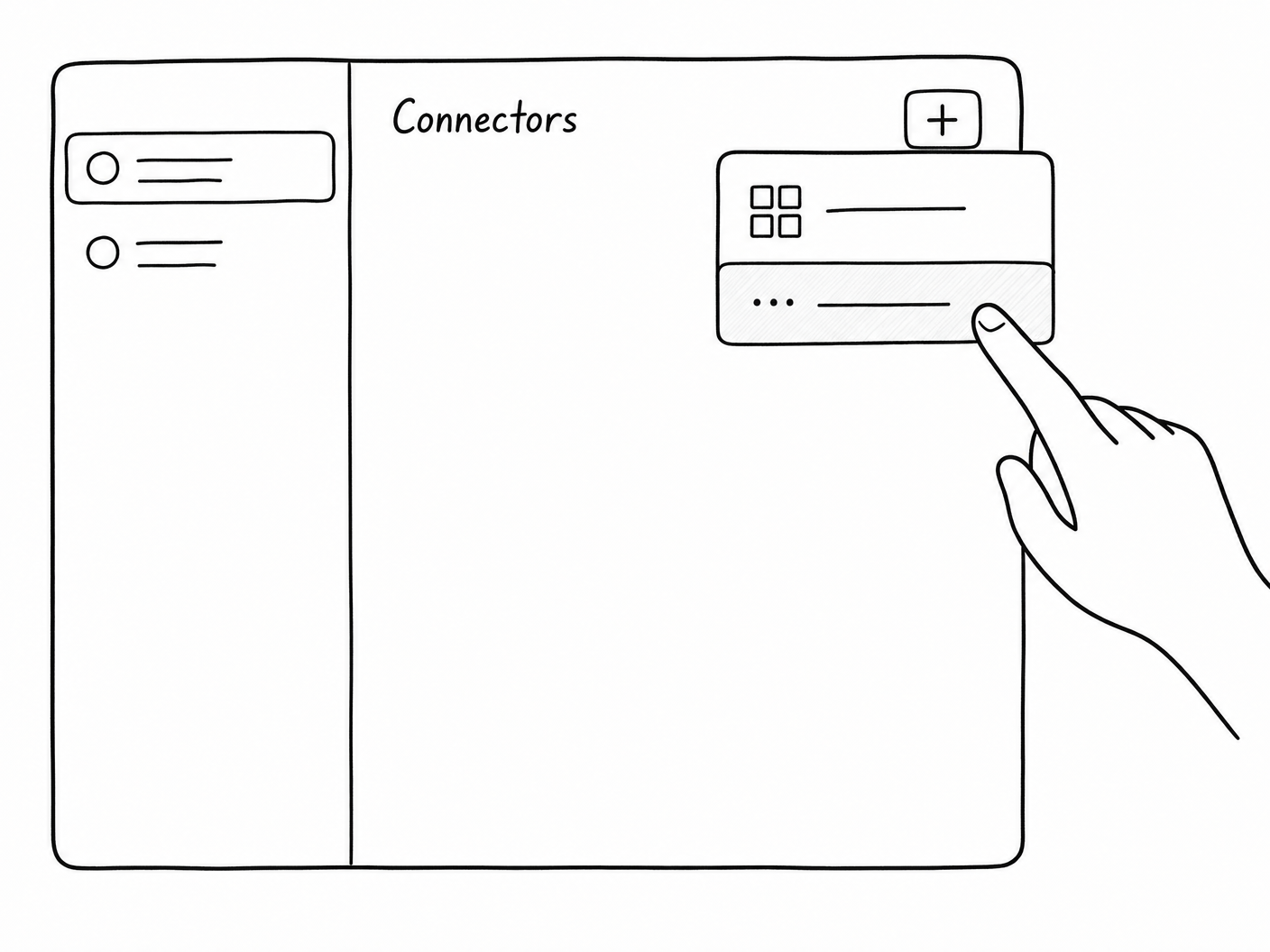

Connectors panel with + dropdown open, hand pointing at Add custom connector
2

Enter the Name and URL

In the Add custom connector dialog, type Community Aviation MCP as the name. Paste the URL below into the URL field, then click Add.

MCP server URL
https://mcp.communityaviation.ai/mcp
Add custom connector dialog with name and URL fields
3

Click Connect

Community Aviation MCP will appear in your Connectors list under Not connected. Click on it, then click the Connect button.

Connectors panel showing Community Aviation MCP listed under Not connected, hand pointing at Connect button
4

Sign In and Authorize

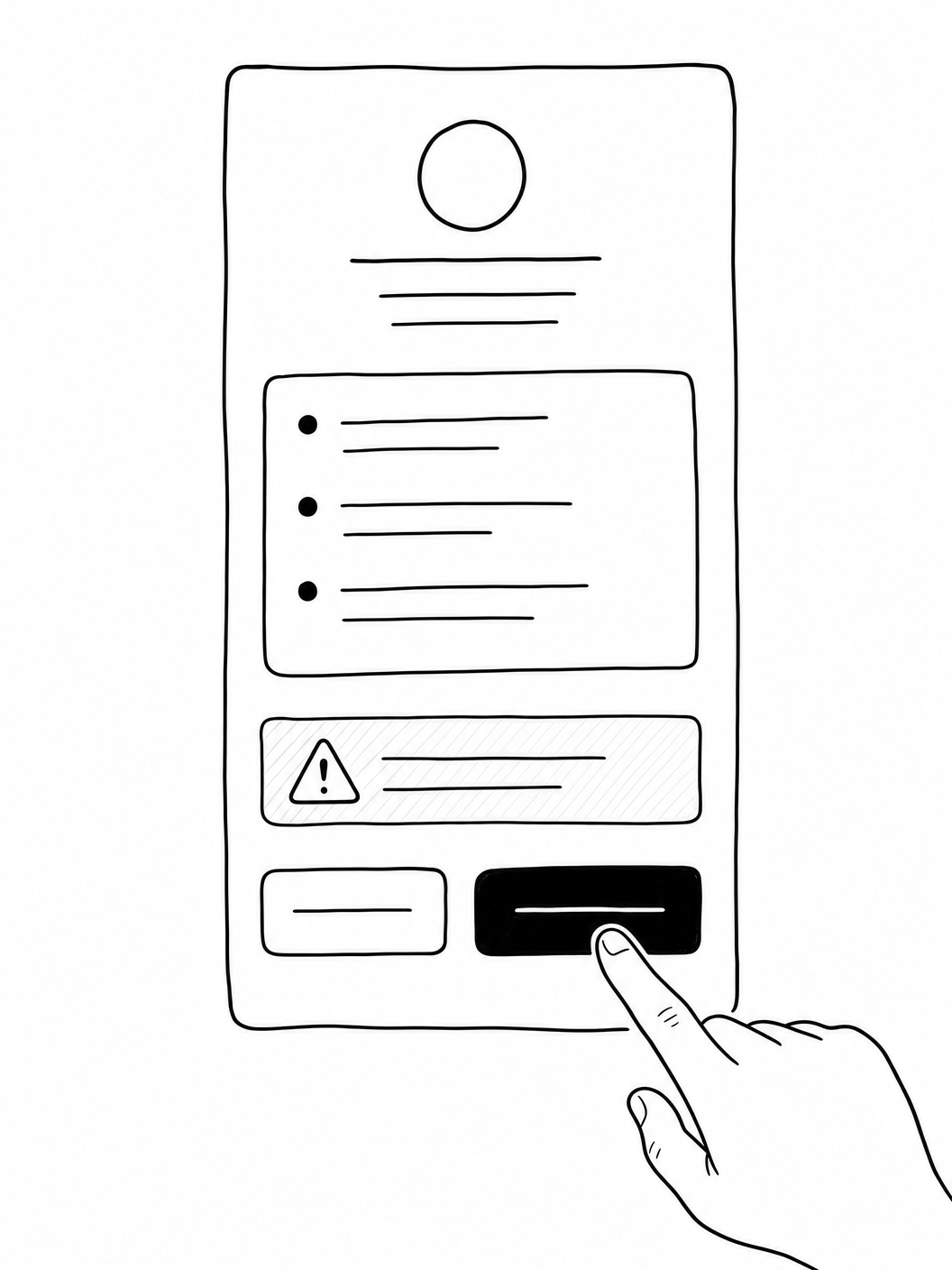
A sign-in screen will appear. Log in to your Community Aviation account. If you don’t have one, create one now. Once signed in, click Allow to authorize the connection.

Community Aviation sign-in and OAuth authorization screen
5

You’re Connected

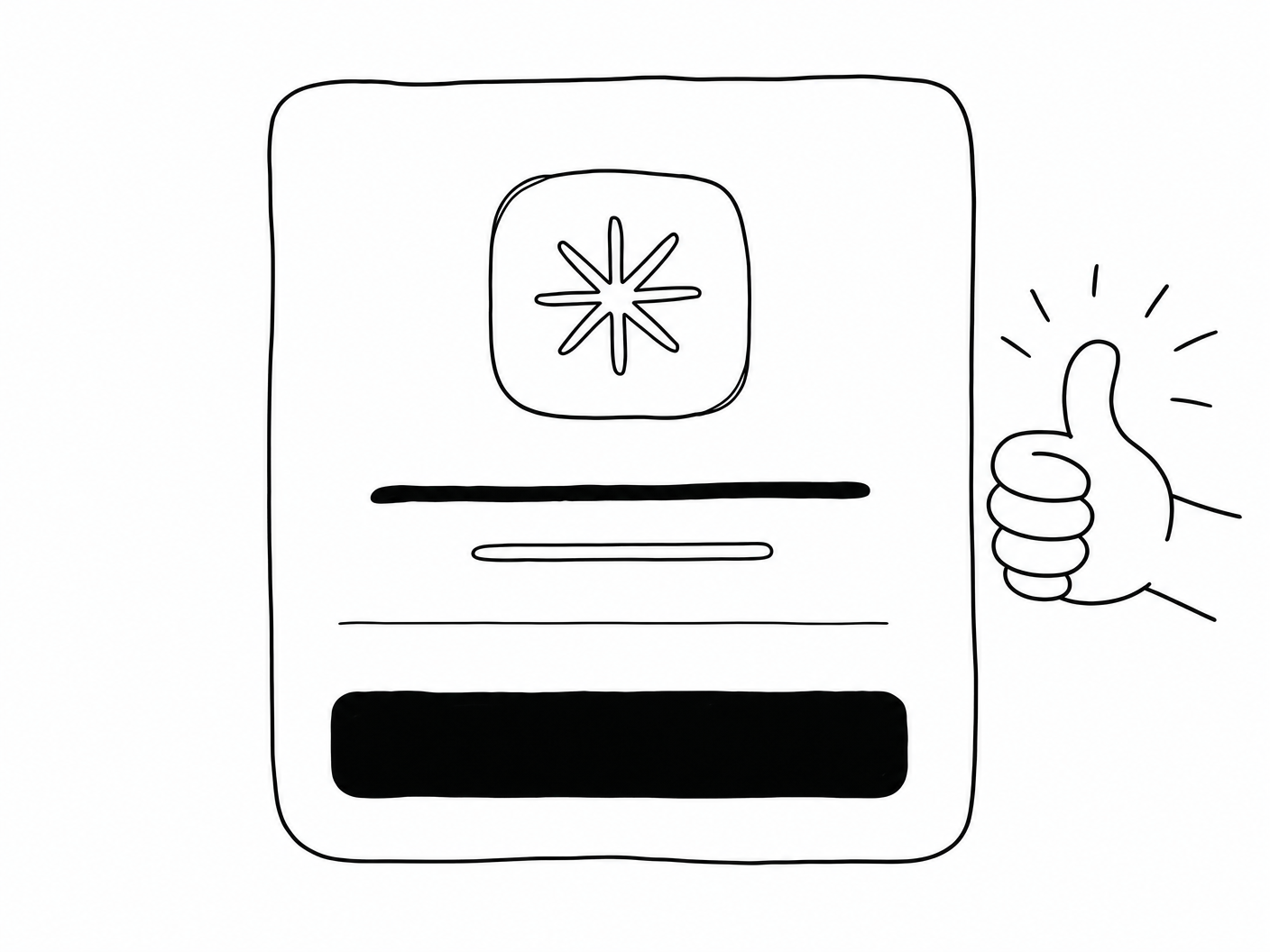
You’ll see a Connected confirmation screen. Click Open desktop app to return to Claude. Community Aviation MCP is now active in your Connectors list.

Connected confirmation screen with thumbs up
6

Enable in a Chat

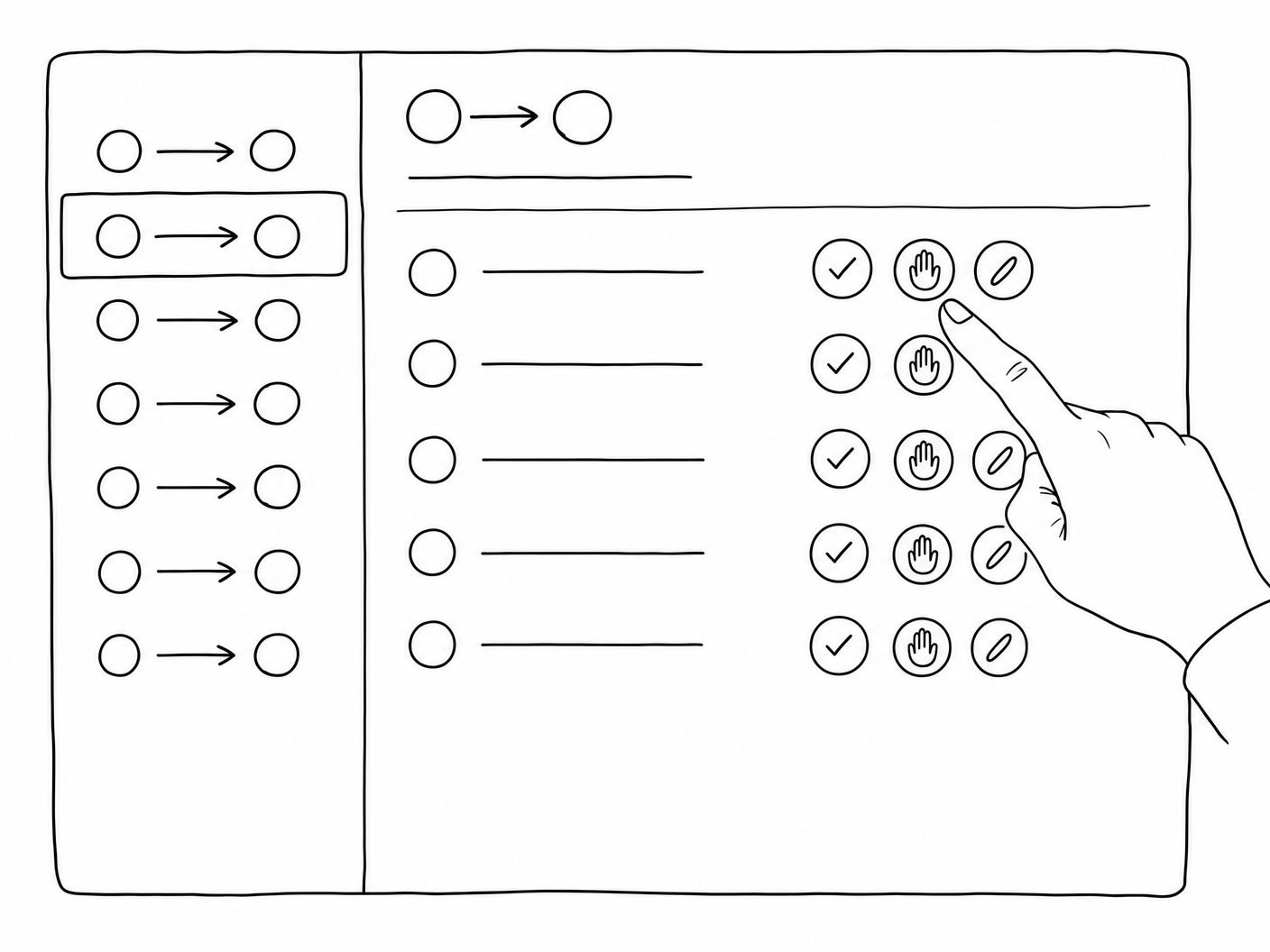
Start a new chat. The Community Aviation MCP tools are now available. You can manage tool permissions anytime from Settings → Customize → Connectors → Community Aviation MCP.

Try asking: “What’s the current METAR for KIAD?”

Ready to test
Claude chat with Community Aviation MCP tools enabled
7

Install the Aviation Skill

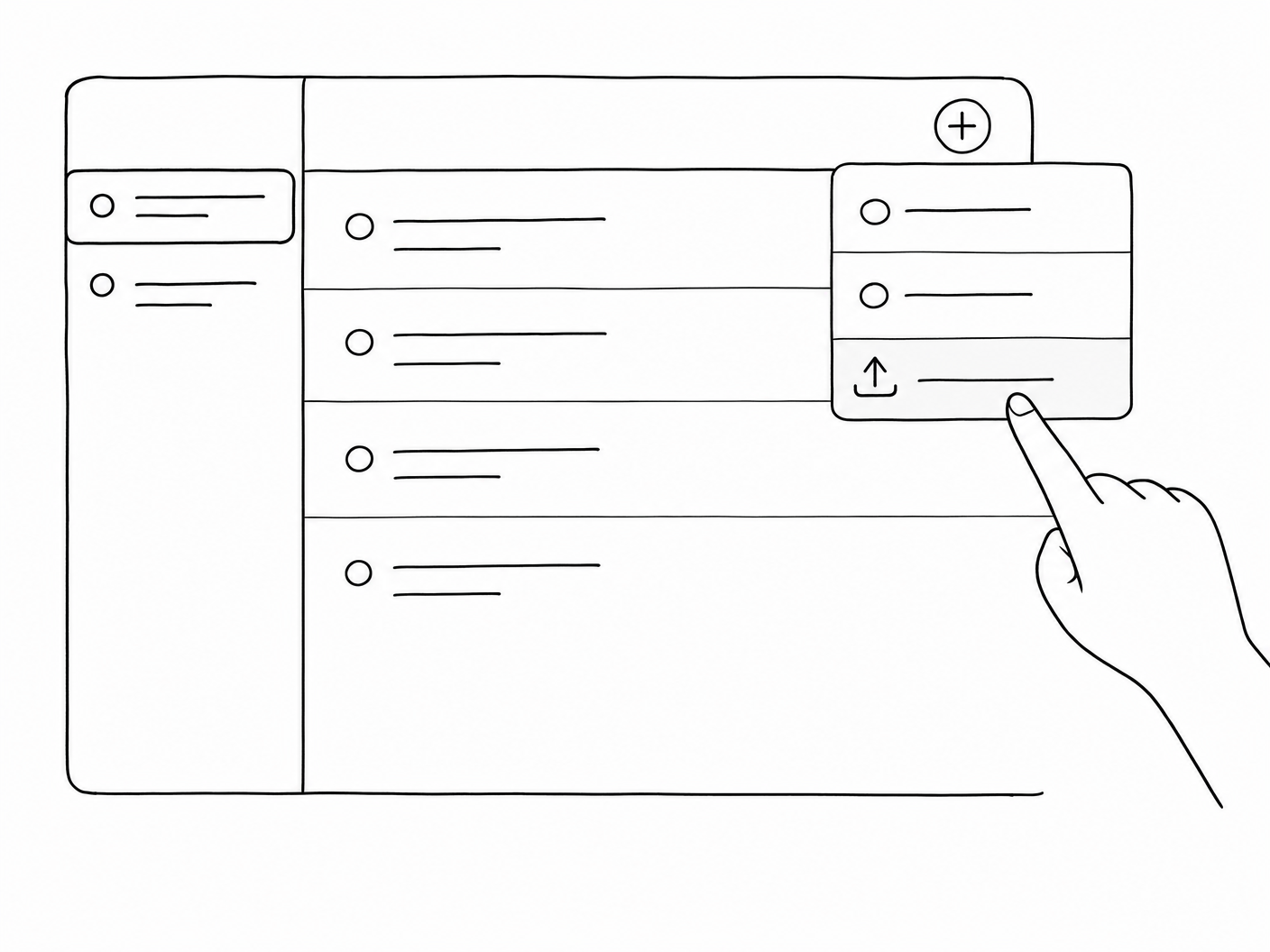
In Claude, open Settings. Navigate to Customize, then select Skills. Click the + button, then select Upload a skill from the menu. Upload the file airport-status-v2-1.md. Once installed, Claude will use it automatically when answering aviation weather and airport status questions.

Skills panel with + dropdown open, hand pointing at Upload a skill